# 1.1 Fun with terminal
comp-eng terminal funsetup:
1. raspberry pi 400 units running raspian 12 (trixie)
2. one victim machine running raspian
3. student laptops with terminal running, homebrew if mac, WSL if PC
IMPORTANT:
1. NEVER share your login info with others: your passwords are like your underwear: nobody should see it, change it often, and don’t leave it on your desk
2. take notes on every step for future quiz
IMPORTANT:
With great power comes great responsibility: the tools you learn today are powerful, and if used correctly can make you a computer ninja. Abusing them can get you in trouble with HPA or in the outside world, with greater consequences. Attacking or invading another computer without permission is grounds for dismissal at HPA, according to the student handbook and acceptable use policy at HPA.
What we do in the elab, stays in the elab.
First notes:
Why do we mess with terminal?
1. it is seen everywhere
2. it can be done remotely
3. it give you god-like powers
4. it looks cool
I really want you to learn to play with these commands, they give you total control of any computer, anywhere in the internet...
Stopping stuff:
- ctrl-c means cancel
- ctrl-z means halt (stop everything, not gracefully)
Part one: internet tools: ping, traceroute, nslookup, dnsping:
- what is it?
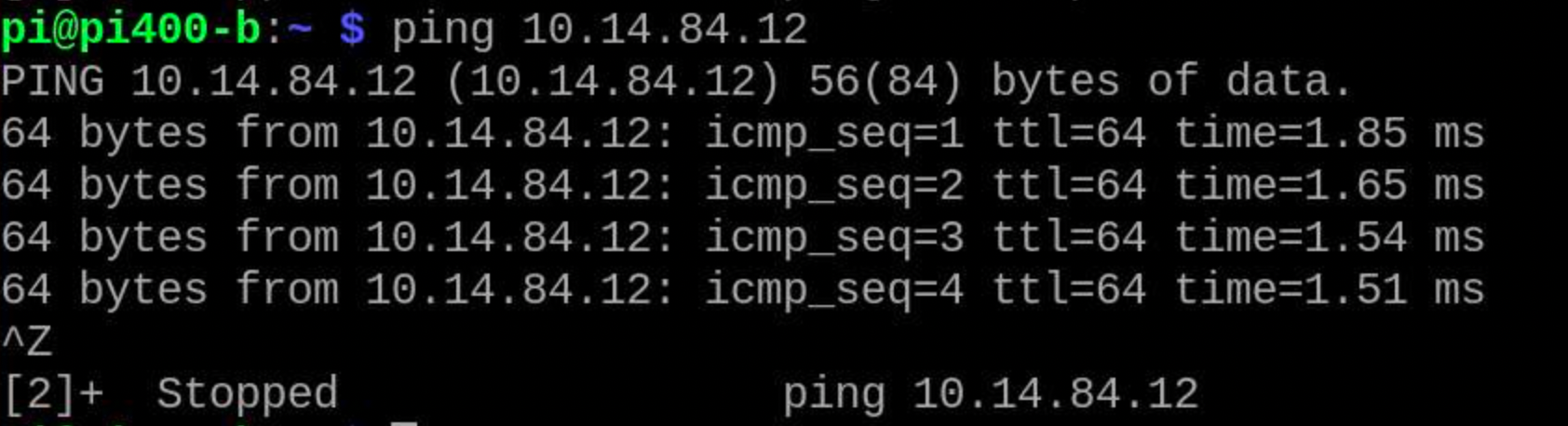
- sends a data packet to a computer and records the time it takes to echo back to your computer:
Screenshot 2026-03-25 at 5.39.42 AM.png
- Note that it repeats, sending a packet 64 bytes in size to the computer at 10.14.84.12, taking about 1.85 ms (milliseconds) to return.
- 1000 milliseconds =1 second 1 second, so this computer is likely on your network, wired and responsive
Try this:
1. open terminal on your computer
2. ping 8.8.8.8 and notice the return time
3. use control-z to stop this
4. ping 10.14.1.4 and notice return time-why are they different?
5. try ping to your neighbors, their IP addresses may be listed on the board
6. how can you tell if someone is connected by wire or by wireless from their ping?
7. why are gamers interested in ping?
8. look up a ping flood attack-who might use this and why?
9. how many bits make up a byte?
traceroute:
- what is it?
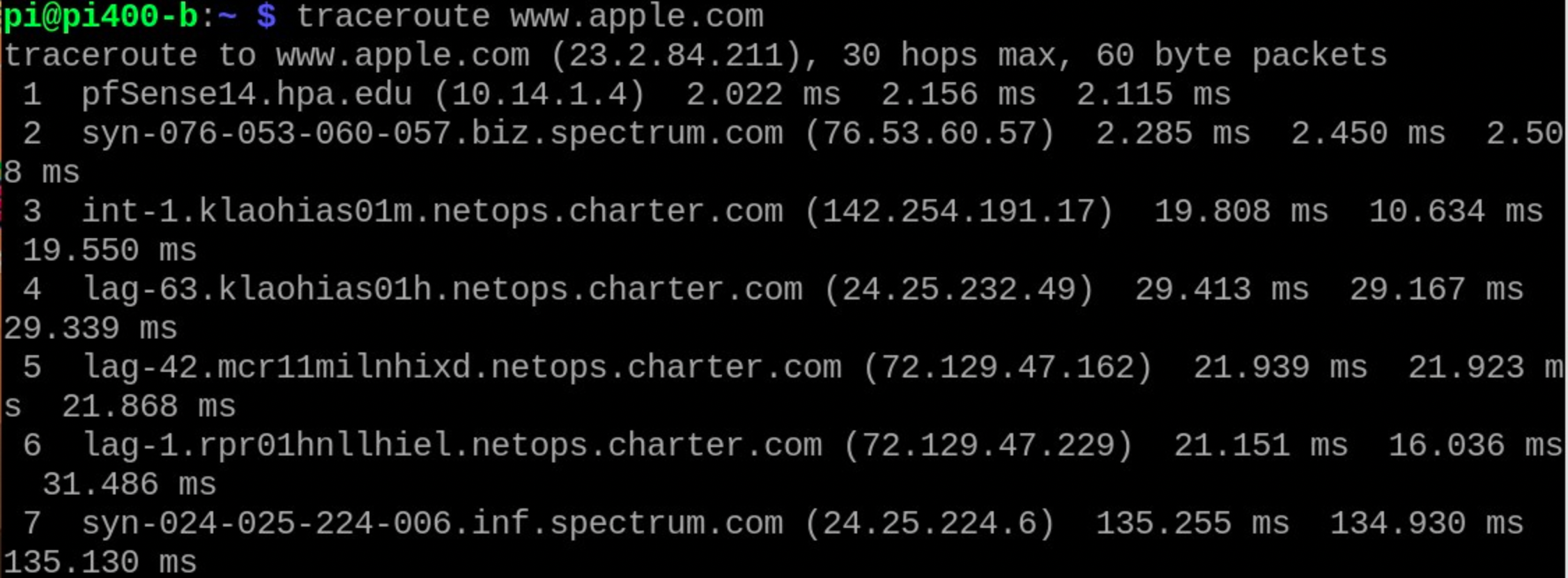
- traces the path to a computer, listing the time each packet spends at each node:
Screenshot 2026-03-25 at 5.43.21 AM.png
- Notice that each of these has a name attached to it.
- In the internet, each number is an address, and a domain name server (dns) converts these from names to numbers and reverse.
- Notice that each name has a number in parentheses after it
- Notice also that there are times listed after each one-this is the time spent at each node between your computer and www.apple.com
1. what is the IP address of the www.apple.com server?
2. what is the name of the server at 10.14.1.4?
3. which node is in Honolulu?
4. traceroute to [www.apple.com](http://www.apple.com)
5. ctrl-z to stop
6. notice all of the steps between, and the times for each step
7. traceroute to a local IP address, like 10.14.4.1
8. now try the same thing to elab.hpa.edu-how are they different?
9. traceroute to a site of your choice, note the paths to that machine
10. why would gamers like to have short paths?
nslookup:
- what is it?
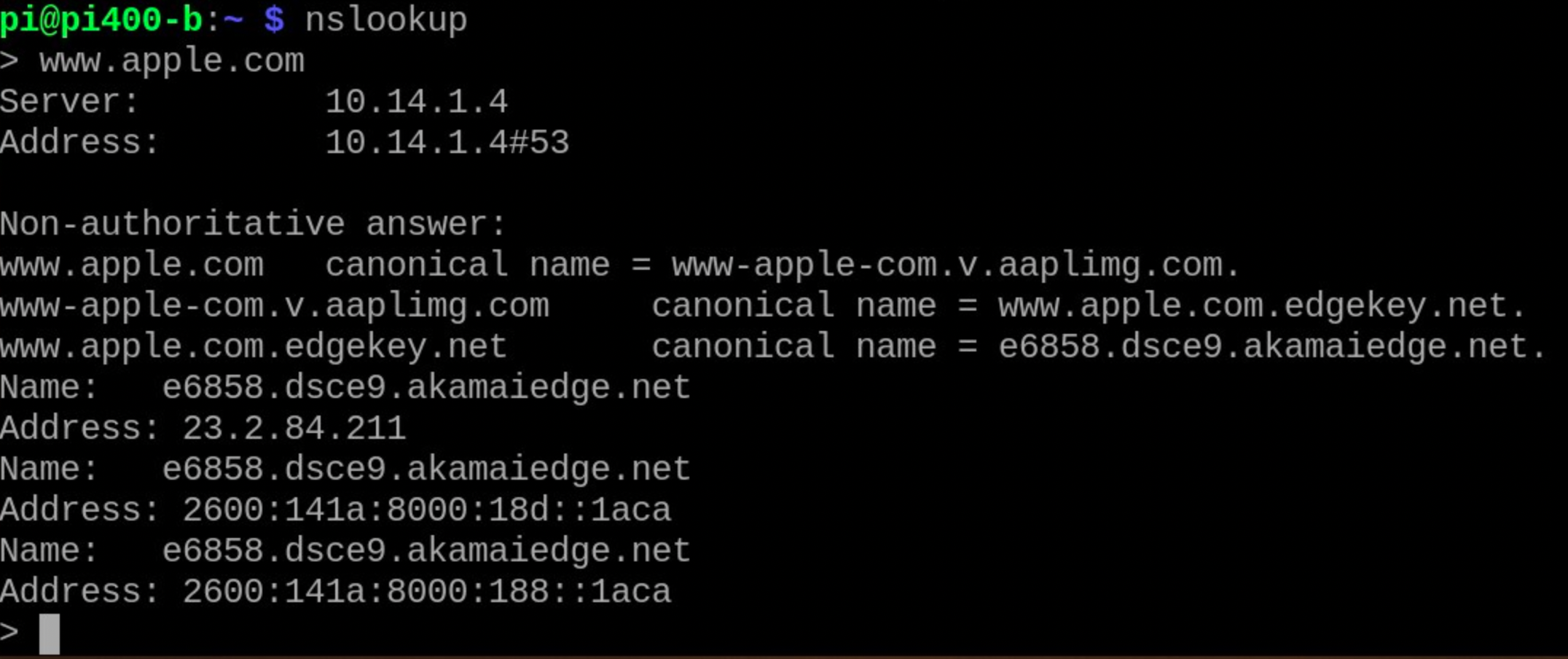
- looks up and translates names into numbers, using DNS servers, either the one setup on your computer, or others you can choose, so you can see what IP address a name represents from what DNS server (internal or external)
Screenshot 2026-03-25 at 5.48.24 AM.png
- Ok, lots going on here: first you see 10.14.1.4, which is the DNS server in the elab, which translates names like www.apple.com into numbers like 23.2.84.211
- Do you see the same number in the traceroute test?
- There are other more complex addresses like 2600:141a:8000:18d::1aca, which is something called IPv6
- Why?
- We are running out of original IP addresses on the internet in the form of 255.255.255.255, so we use "fake" IP addresses inside homes, schools, and businesses, in the form 192.168.1.x or 10.14.x.y
- you can query (ask) either internal name servers like ours at 10.14.1.4, or you can ask outside name servers
- why are they different?
- look below:
1. type nslookup, wait for the weird < character
2. type server 10.14.1.4
3. then enter [www.apple.com](http://www.apple.com)
4. enter [elab.hpa.edu](http://elab.hpa.edu)
5. now type: server 8.8.8.8 (this is the google DNS)
6. enter [elab.hpa.edu](http://elab.hpa.edu) why is this different?
7. open a browser and enter [http://10.14.4.1](http://10.14.4.1)
8. type exit to exit
9. look up your name using the internal dns
10. look up your address using the same tool in reverse
Part two: secure shell (ssh)
- what is it?
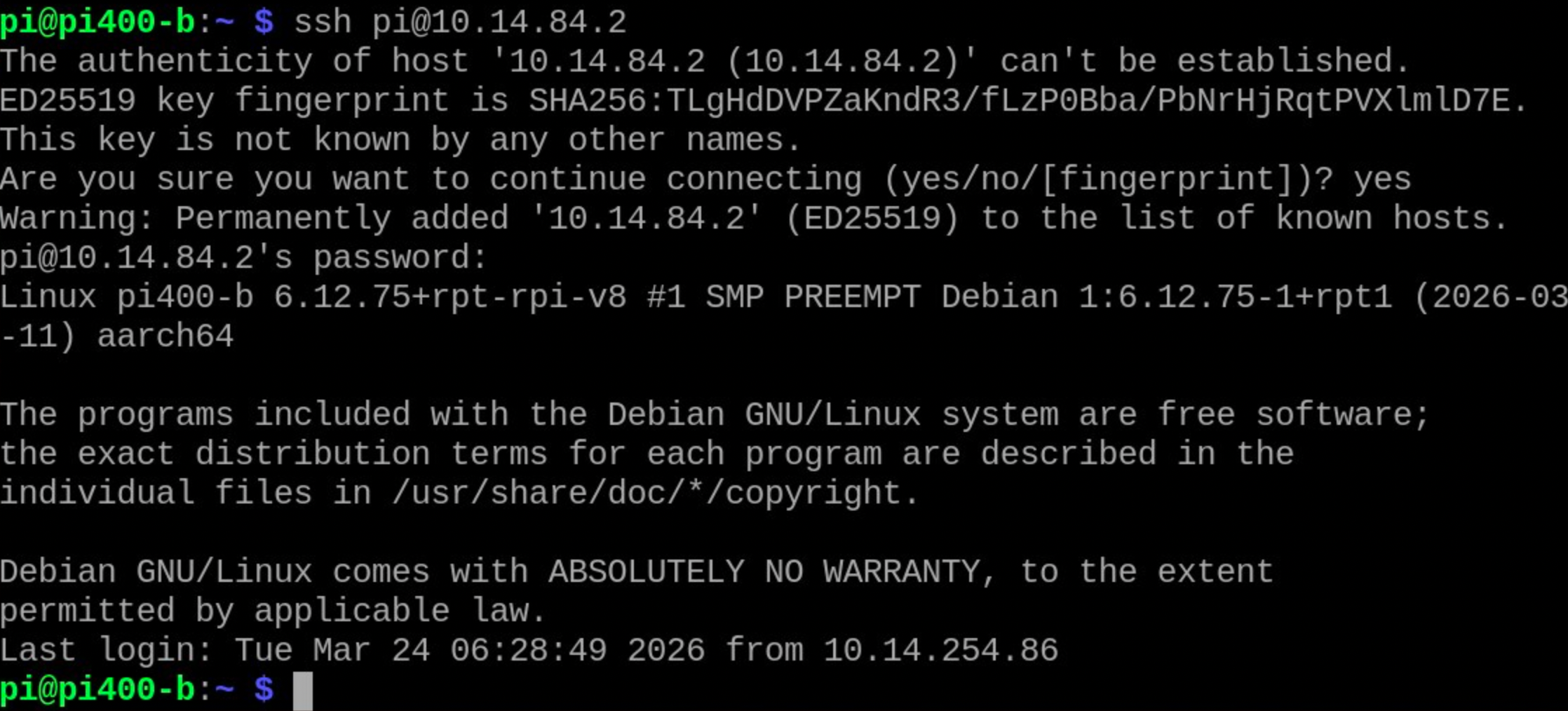
- a secure connection in terminal between your computer and another computer
Screenshot 2026-03-25 at 5.59.10 AM.png
- Ok, first thing I did here was ssh into 10.14.84.2 as pi
- notice the format: ssh who@IPADDRESS
- it then asks me if I'm ok trading secure keys with this maching
- you say "yes" then the key is added to both machines in a hidden file (ask about this if you are curious)
- it permanently adds 10.14.84.2 to the list of "known hosts"
- what is not obvious is that the green bit at the bottom is actually INSIDE the second computer
- you are now inside the second computer and can run commands-from anywhere in the world
1. look on the whiteboard for the IP address of the victim computer
2. make sure your laptop (yours or ours) is on the elab wifi network
3. ping the IP address for the victim
4. traceroute to the victim
5. nslookup for the IP address of the victim
6. ssh into the victim machine: ssh admin@IPADDRESS, login info on the board
7. what do you see?
8. where “are” you?
9. type: say “hello guys”
10. if you can ssh into a mac, play with different voices using say -v “hello”
11. look up the say command on osx and learn how to say different voices
Part three: secure shell commands
- who also whoami
- last your last command, also the up arrow
- top lists all processes, useful with kill (see later), looks very cool if you are POS
- history: shows recent commands like this, useful for retracing your steps or seeing who might have been in your machine
1. login to the victim as above
2. type who, it should say who you are
3. repeat with the whoami command. what is the difference?
4. type last, it should show you who last logged in, and from where
5. why is this useful in determining if your computer has been hacked?
6. WITH PERMISSION: type sudo shutdown -r now
7. this is an example of a linux and unix command:
1. sudo means treat me like the admin for the machine (superuser do)
2. shutdown says shutdown the machine
3. -r is called a “flag” it modifies the previous command, meaning in this case “reboot after shutdown”
4. if you did this command without the -r, the machine would stay off
9. try the top command, this shows what is going on in the machine
10. try the history command, this is a list of past commands, very useful if you are working on a project, as you can copy this to your other work or records
Part four: where the heck am i?
New commands:
- ls means "list files here"
- pwd means print working directory, or "where am I?"
- cd means "change directory"
- cd .. means "go up a floor"
Screenshot 2026-03-25 at 6.07.42 AM.png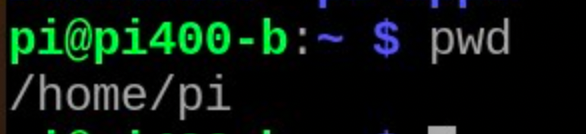Screenshot 2026-03-25 at 6.07.59 AM.pngScreenshot 2026-03-25 at 6.08.25 AM.png
- in the first frame, notice the folders with capital letters like Desktop or Documents
- note the red one, this is an app to be installed
- rpdiags.txt is a text file
- in the second frame, we are in the directory /home/pi
- the ~ character means your home directory, you can use this on your mac as well to do cool stuff
- in the third frame, I changed from /home/pi to /home/pi/Desktop
- to change back, I could use cd ..
1. ssh into the victim machine
2. type ls (list files), this shows the listing of files where you are in that machine
3. type pwd (print working directory), this shows what “floor” you are on in a building
4. type cd /home/pi to "change directory" to your home directory
5. type cd .. (change directory up one) and repeat pwd, what do you see?
6. repeat these steps in a new terminal window on your own computer, and verify by looking in your own home directory
7. open the file browser (yellow icon at the top) and see if what is there matches what you see in terminal
8. question: if there is a nice GUI (graphical user interface) like file browser, why do I need to learn terminal?
9. cd to your desktop and use ls list the files there-what do you see?
Part five: creating files
New commands:
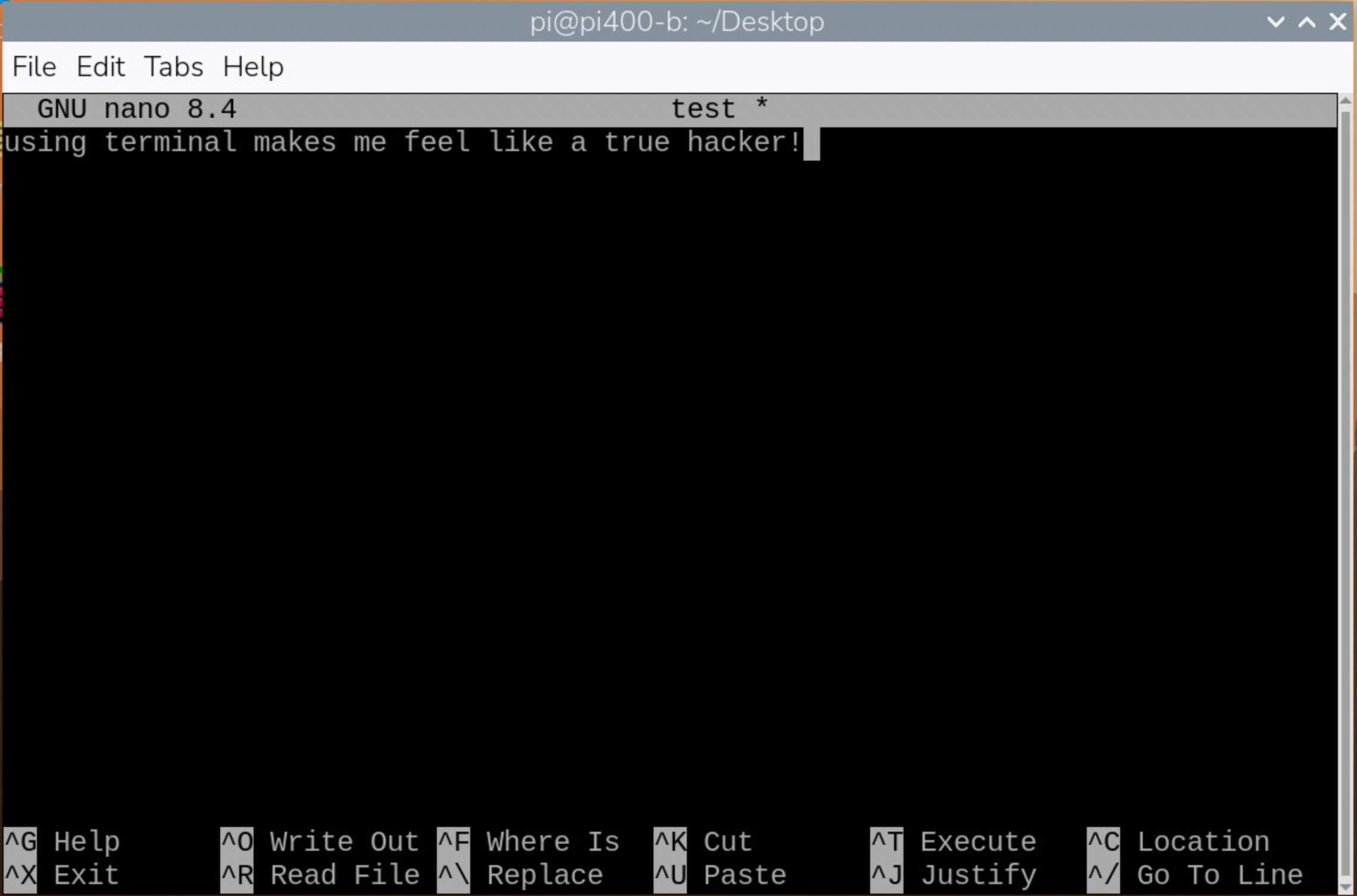
- nano is a text editor in the terminal
- less means "show me what is in a file"
- more means the same thing, just more detailed
Screenshot 2026-03-25 at 6.14.59 AM.png
1. on your raspberry pi, use terminal to navigate to your home directory: cd /home/pi
2. type sudo nano test
3. in the open window, type some wise words
4. type ctrl-o (overwrite) and return
5. exit using ctrl-x
6. on your pi, navigate to your home directory using the file browser and see if there is a new text file there, and open it
7. using the terminal, navigate to your home directory, and type less test, you should see the same document
8. this also works with the more command
Part six: creating directories (folders)
New commands:
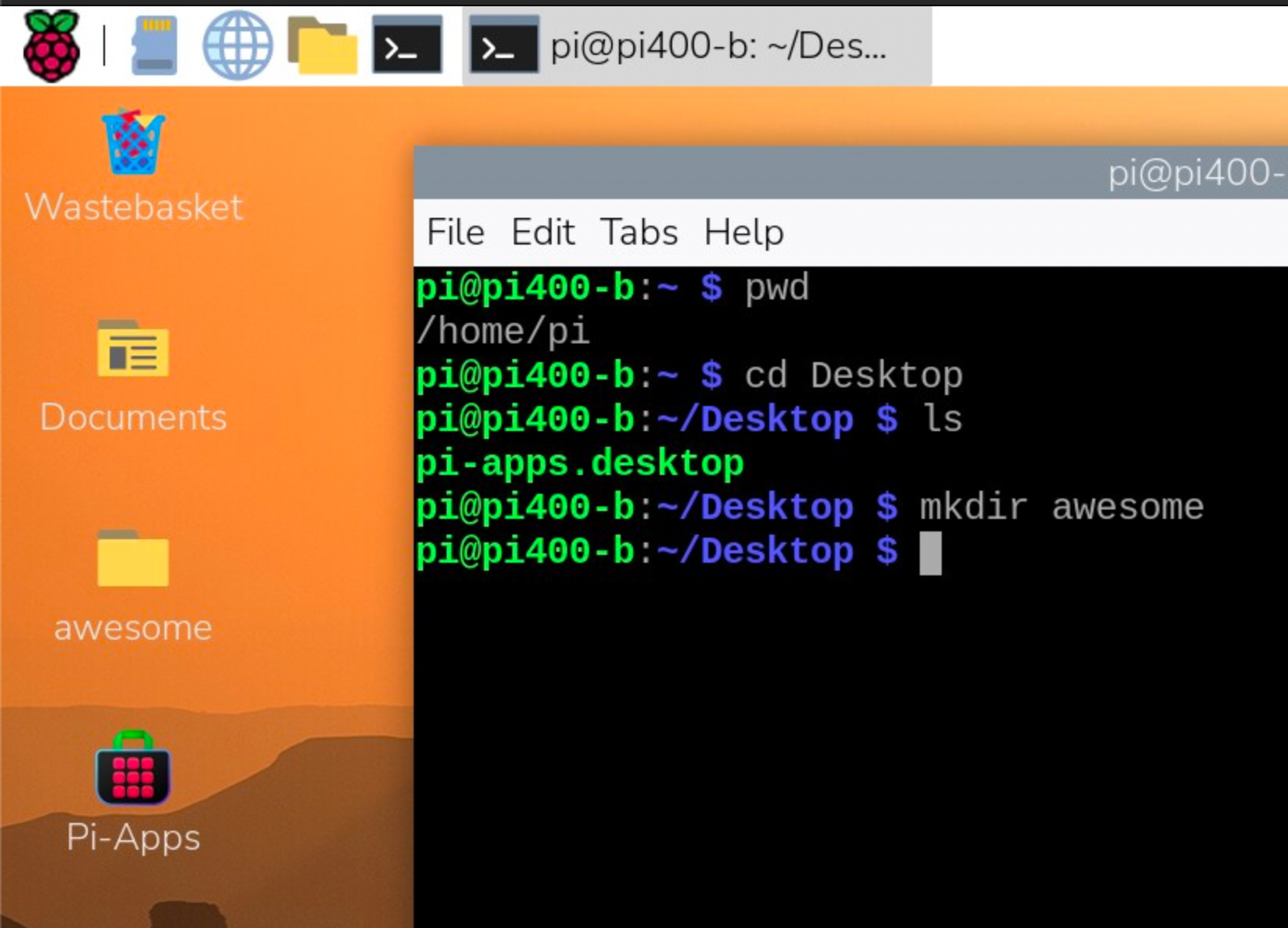
- mkdir means"make a new directory" which is a folder with that name on it
Screenshot 2026-03-25 at 6.21.28 AM.pngChallenge: Linux folder challenge
1. navigate to your home directory: cd /home/pi
2. change directory to your desktop: cd Desktop
3. use ls to list what is there-does it match what you see on your desktop?
4. type sudo mkdir awesome (make a directory called awesome)
5. change into this directory using the cd command
6. create a new text file using the nano command inside that folder with your name
7. confirm the new folder and text file show up in the GUI (graphical user interface=your desktop)
8. checklist: awesome folder with text file inside in your name
Part seven: put it all together!
Challenge: ssh and folders
1. we will be working in pairs for this part ASK PERMISSION FIRST
2. ssh into your neighbor's computer and look at the who command to see who is logged in and from where:
1. ssh pi@10.14.84.x or ssh pi@name.hpa.edu
2. password
3. who
4. last
4. navigate to their desktop and create a file there called "payload"
1. cd /home/pi/Desktop
2. sudo nano payload
3. type a note to them, make it nice!
4. ctrl-o, return, ctrl-x
6. have them verify that you sent them a little message with their file browser
7. create a folder on their computer called "stuff"
1. cd /home/pi/Desktop
2. pwd
3. ls
4. mkdir stuff
5. cd stuff
6. pwd
7. ls
8. sudo nano herobrine
9. type your name in the message
10. ctrl-o, return, ctrl-x
9. Have them look in the new folder and open the herobrine document
10. shutdown their computer using the shutdown - r now command
11. thank them for letting them invade their computer
12. checklist: payload folder on another computer, herobrine text file inside with a message
Challenge: Find Herobrine
1. login to victim.hpa.edu (login info on the board)
2. locate the herobrine file
3. write a note in the same folder with your name on it
4. checklist: in the victim.hpa.edu computer a note with your name on it in the same folder as the herobrine file
Checklist: at this point you should know how to use each of these:
- ping
- traceroute
- nslookup
- ctrl-c
- ctrl-z
- network icon
- sudo shutdown -r now
- ifconfig
- who
- top
- history
- ls
- pwd
- cd
- cd ..
- sudo nano
- mkdir
- sudo apt update -y
- sudo apt upgrade -y
- ssh pi@10.14.84.20
- IP address, netmask, gateway, dns
---
Migrated from Apple Server Wiki. Original page ID: u4a1W5r8D