# 1.2 Linux advanced strand
Advanced strand: from “running commands” → “thinking like a system admin / engineer”
1. internal vs. global dns
2. NAT outbound and inbound port forwarding
3. private addresses
4. look in known\_hosts file, repairs
5. why MTM warnings matter
6. mulit-hop remote access (cuckoo’s egg situation)
7. scp
8. processes, kill -9
9. ps aux \| grep blah. (pipes)
10. absolute vs. relative paths
11. wildcards
12. file permissions, ownership
13. chmod
14. ls -la
15. editing config files
16. reading logs
17. shell scripts
18. making scripts executable
19. crontab -e
20. updating, upgrading, dpkg
21. systemctl start, stop, status
22. ufw status
Private addresses:
- any machine on the internal network likely has a "fake" address in the form of 192.168.x.y, or 10.x.y.x, or in some rare cases 172.16.x.y (nobody uses this believe me)
- why? look this up
- compare the IP4 address for the elab-wiki server (see below) to the IP6 address
- many machines can also be reached by elab.local for example, with no DNS involved
- challege: look up the default network configuration for several commercial routers: what do you notice?
Internal vs. global DNS
- for internal network users, you can run an internal DNS that resolves names to numbers
- test this by using NSLOOKUP to look up the elab.hpa.edu server
- change the DNS lookup server by typing server 8.8.8.8
- repeat the command and compare
- challenge: repeat this process for elab-wiki.hpa.edu and xserve.hpa.edu
NAT outbound
- when you browse the internet, there must be a way to convert your 192.168.x.y address into something else that the web servers can recognize
- this is done through network address translation or NAT outbound, where your address is translated into the address of your router on the way out
- this router is what the servers see
- this process is reversed on the way back in, sending the web page back to your protected internal machine
Inbound port mapping-firewalls
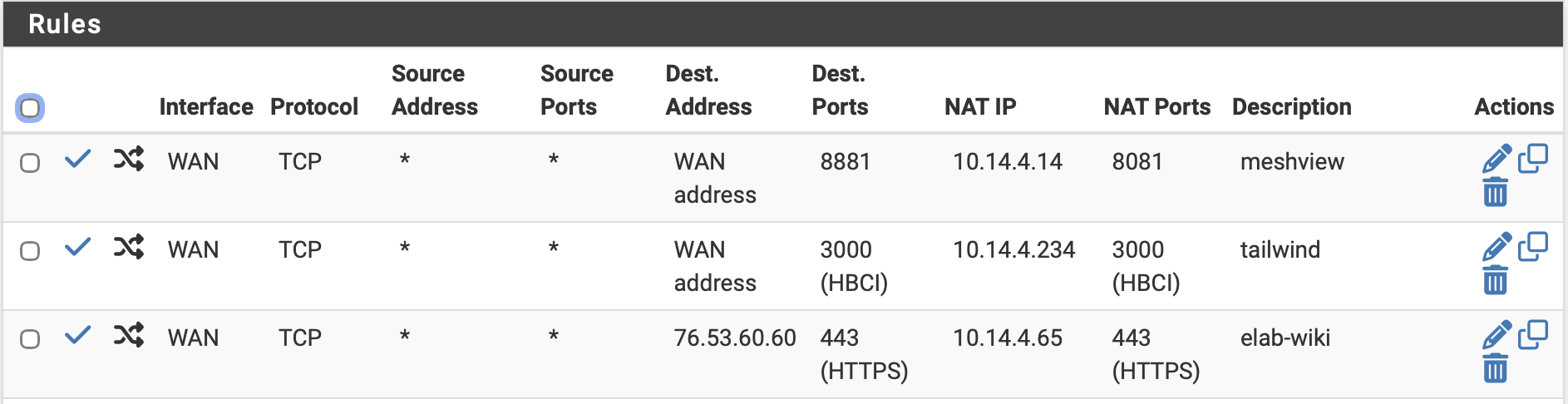
- the reverse of this is inbound port mapping, where an outside user contacts your router and is pointed to your internal machine, usually on a defined port, for example to run a game or host a web page
- challenge: look at the page below and describe how outside users might see the elab-wiki server:
Screenshot 2026-03-31 at 1.01.03 PM.pngSSH issues:
- when you establish a secure shell connection, two things are added: one to your machine, the other to the host machine.
- in your machine, a host file is where these are stored, listing the IP address of the host and a key that the host has shared with you
- if the IP address of the host changes, you will be faced with a serious message in the terminal that such a host cannot be trusted
- to solve this, you must find the .known\_hosts file on your computer, open the file with nano, and delete the previous IP address + key line
- in practice, you could just erase the entire file, but any connection you have setup before this will have to be re-established
- challenge: find the .known\_hosts file on your mac and copy a line from it
- challenge: do the same with the pi
Man in the middle attack (MTM):
- it is possible for a hacker or bot to watch the network you are on, and masquerade as the host you are sharing a key with
- first they watch the keys being transferred, and copy these
- they then kick the host off the network (usually a wireless attack)
- they then use the key to interact with your computer, posing as the host
- MTM warnings check the .known\_hosts file and if the IP address does not match, it refuses to connect
- challenge: ssh into the control computer, then change the IP on the computer and repeat
- explain why an MTM warning matters
Multi-hop remote access:
- ssh into one of the pi units in the lab
- from that machine, login to another machine
- create a text file in this machine, on the Desktop
- enter some text and ctrl-o, return, then ctrl-x
- look up "the cuckoo's nest" by Cliff Stoll
- explain how the hacker was tracked and what was the resolution
Secure copy:
- on your pi, create a text file called "payload" in your home directory: /home/pi using nano
- secure copy this file over to another computer using this command: scp /home/pi/payload pi@10.14.84.20:/home/pi
- go to that machine via ssh and verify that the file has been transferred
- verify from the GUI as well
processes, kill -9
- type ps -aux to see a list of processes
- open some app on your pi
- look again at the ps command result
- kill the process by using the kill -9 <process ID>
- n.b. be careful with kill -9 it is like an assassination: it kills with no warning, and no mercy
processes, pipes
- let's say you are looking for a process, but can't find it
- piping means sending the result of one command to another like this: ps aux \| grep blah
- this means: "show me all processes and when you get that list grep (search) for the process called blah"
- try this out with the example above
files, wildcards
- let's say I want to edit the file awesome in the home directory
- I could type sudo nano awesome
- or, since I am almost as lazy (faul) as a mathematician, I use: sudo nano awe\*
- this only works if there are no other files in that directory starting with awe, so use this with caution
files, listing files
- the ls command for list is something you will use constantly
- it is a summary, to see more, use the ls -la flag:
- l means long form, or all of the data
- a means all of the files, even the hidden ones
- challenge: use the ls -la command on your directory, what do you see?
- sudo nano .herobrine in your /home/pi directory
- enter some text and ctrl-o, return, then ctrl-x
- use ls on your directory
- look in the GUI for the file, where is it?
- repeat with ls -la
- create a hidden file on a remote machine then challenge the user to find the file
files, who owns what?
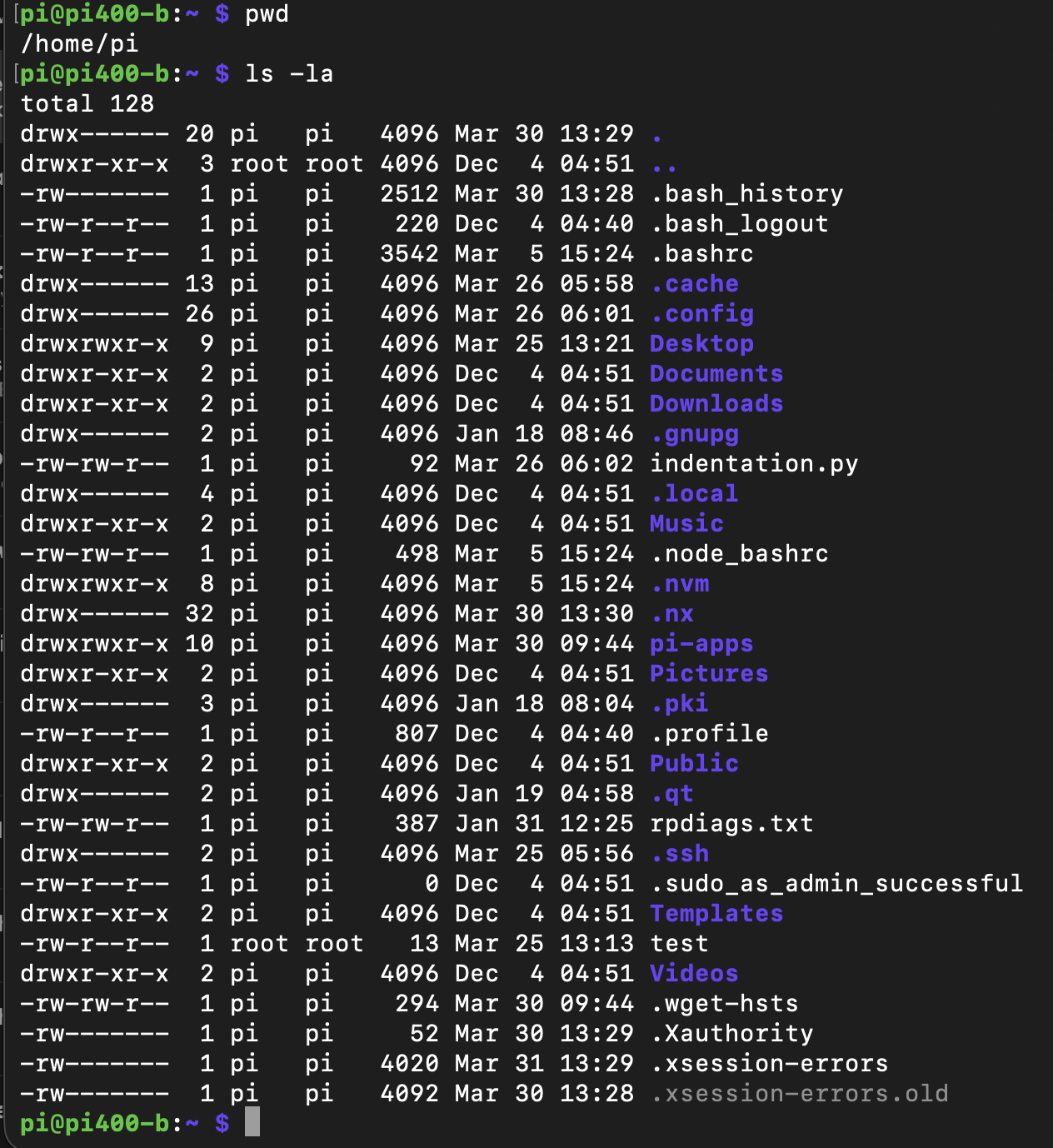
- in your /home/pi directory, using ls -la you notice lots of other stuff like this:
Screenshot 2026-03-31 at 1.36.13 PM.png
what does all this mean?
- d means directory or folder
- there are then three sets of three letters: r means read, w means write, x means execute
- these are for three levels of ownership: owner, user, everyone
- read counts at 1, write counts as 2 and execute counts as 4 (notice how these are all base 2 numbers)
- we could say a file you could read, write and run as a program was rwx or we could add these to make 7 (1+2+4)
- chmod is how we change the permissions on a file, so chmod 777 is the same as chmod rwx
- this would be dangerous, as you have made the file read write and execute for owner, user and everyone
- you may create a python program you want to run, so you would enter chmod +x program.py
- this makes the file a program that can be executed
- challenge: create a text file and notice the permissions
- cd /var/www/html and notice the permissions on index.html, the home page for your computer
- on the browser, go to 127.0.0.1 (me myself and I in computer language)
- sudo nano the index.html file and add some words after "It works"
- ctrl-o, return, ctrl-x
- re-visit the home page
- how could you do this as a remote user?
files, installing packages
- while most apps can be installed using sudo apt get <program name> there are others that download into your computer, usually in the /home/pi/Downloads folder
- to open these, use this command: dpkg -i <filename>
- you might also look at pi-apps, which is an alternate file download project
- to update your computer, use sudo apt upgrade
- to upgrade, always add the -y flag: sudo apt upgrade -y
---
Migrated from Apple Server Wiki. Original page ID: T557x3