
Module 3.1: Routers and firewalls
Review:
We know how to scan a network to see who is on the network ("homes"), which doors are open ("ports") and how to get into them via ssh to change things inside the home (sudo nano).
We need to learn how to protect these ports, using a firewall.
Let's review the network architecture:
Internet terms:
- Your computer needs 4 things to be able to get onto the internet:
- IP address, example 10.14.88.83
- Subnet mask, example 255.255.0.0
- Gateway/router, example 10.14.1.3
- Domain name server (DNS), example 10.14.1.4
Here's what each one does:
IP address:
All traffic on the internet or local area network (LAN) is in the form of packets of information, like mail envelopes with a letter inside. Each letter you mail has two important things: the address you want it to go to, and the message inside the envelope.
- TCP/IP is the format of these, which stands for Transmission control protocol and internet protocol.
- The TCP part is the message, and the IP part is the envelope, with an IP address on it.
- Check the IP address of your machine:
- From the GUI: open system preferences, network
- From the terminal: type ifconfig
- Your computer may have an address in the form 10.14.253.x, this means you are "leasing" an address from the system (more below)
Subnet mask:
- Imagine you want to stay in one of two large 254 room hotels. One has long hallways, and very few floors, the other has many floors, but short hallways.
- If you want to sleep, you don't want many people walking down the hall in front of your room. You want many floors with fewer rooms per floors.
- This is what subnet masking does on a network. Each of the four segments can hold 254 addresses.
- At home, you probably have a network that looks like this:
- IP: 192.168.1.49
- mask: 255.255.255.0
- router: 192.168.1.1
- dns: 192.168.1.1
This means that the last zero can hold up to 254 addresses (from 192.168.1.1 to 192.168.1.254)
- HPA has this sort of mask:
- 255.255.0.0
- which means that
- 10.14.0.0
- is the elab, which can have 254 x 254 addresses
- It makes for a quieter network, also providing some security as others cannot see you easily.
Router/gateway:
This is the gateway for all of your traffic, usually the access point at your home. The technical difference between these words is that a router routes traffic between two networks of the same type (like ethernet), while a gateway is between different types of networks (like a cable modem or DSL gateway).
A firewall is just a gateway that has an outside part and an inside part.
Your gateway may also distribute IP addresses inside your network. At home this will likely look like 192.168.1.x, where at the elab, our network leases addresses in the form 10.14.253.x.
To scan these addresses here, you can use nmap 10.14.253.0/24
Domain name server:
- This is the computer on your network or outside that translates names into numbers, like a digital phone book.
- Try this in terminal:
nslookup elab.hpa.edu
- when you get the address, write it down
- open a browser
- go to elab.hpa.edu
- now go to the numbers you wrote down.
- Try this with another name, either on campus or off
- you are asking our domain name server (DNS) to resolve the name into a number
- this also works in reverse, from numbers to names
- using ARIN.net you can find the location of IP addresses outside your network
NSLOOKUP:
- Say you want to find out the name of something, or the IP address from the name.
- try this:
- nslookup
- (you will get a funny > sign)
- type:
- server 10.14.1.4
- type:
- elab.hpa.edu
- what do you get?
- where is this machine?
- Try again using 8.8.8.8 as the server (this may be blocked by our system)
The best use of this is to find out what OTHER people might call a machine.
- We have several DNS servers at the elab, the main one is at 10.14.1.4
- Others to try:
- 4.4.4.4
- 8.8.8.8 (google)
- you can get out by typing
- exit
- or control-z (halt)
Ping and traceroute:
- Imagine you want to find out if a machine is responding (you can block this by using "stealth mode")
- In terminal ping one of the IP addresses in your class
- ping an address out on the internet
- what is the difference?
now try this:
traceroute www.apple.com
- It should give you a trace of the path your connection took.
- Try this with other addresses on and off campus.
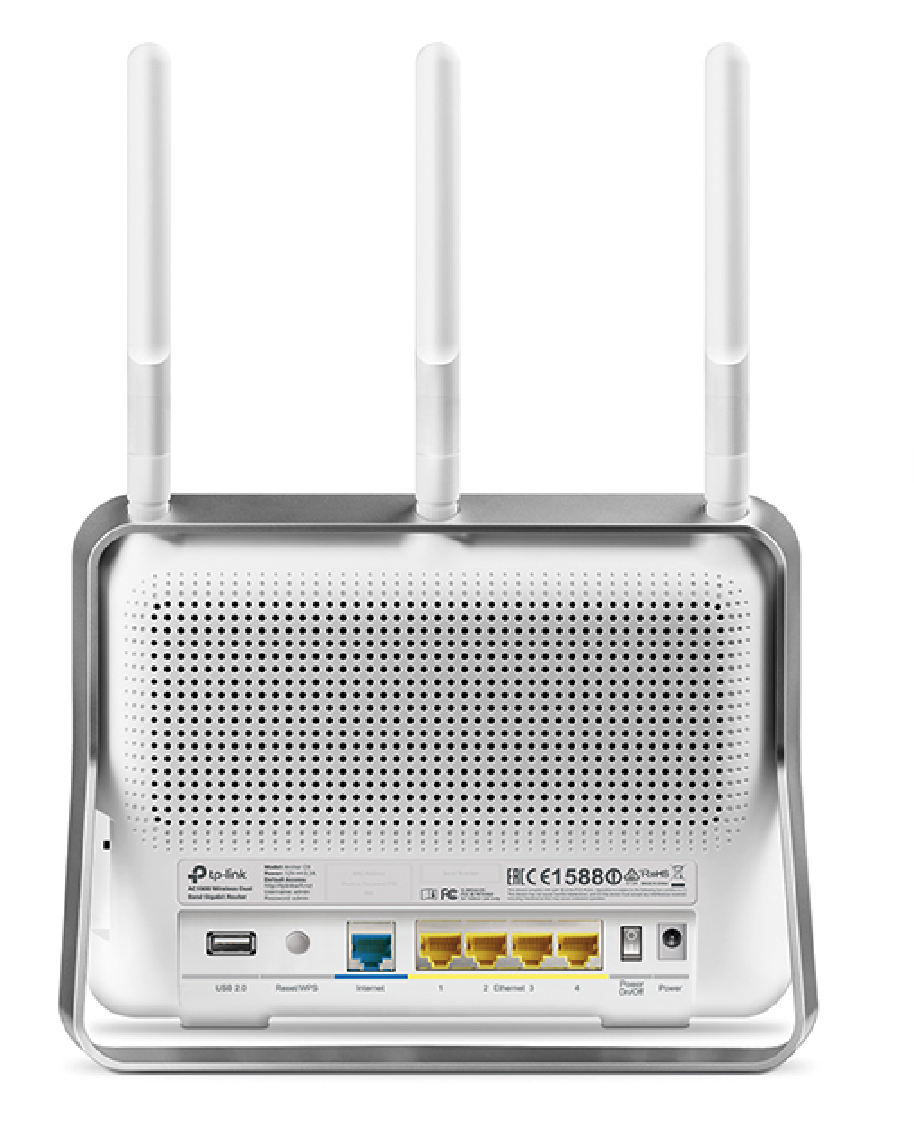
- start with the ports: blue is the WAN (wide area network) you connect to the internet
- yellow are the LAN (local area network) ports for your network.
- the usb port is for external storage
Unmigrated media:Download 7106508226_Archer C9_QIG_V1.pdf (application/pdf, 602.6 KB)
Migrated from Apple Server Wiki. Original page ID: q0G0N1s