
1.0 Linux intro-Pi400
Question: what is the most powerful and dangerous thing you know?
In the computer world, this is linux, which you will be learning on the pink Raspberry pi 400.
What is a pi400?
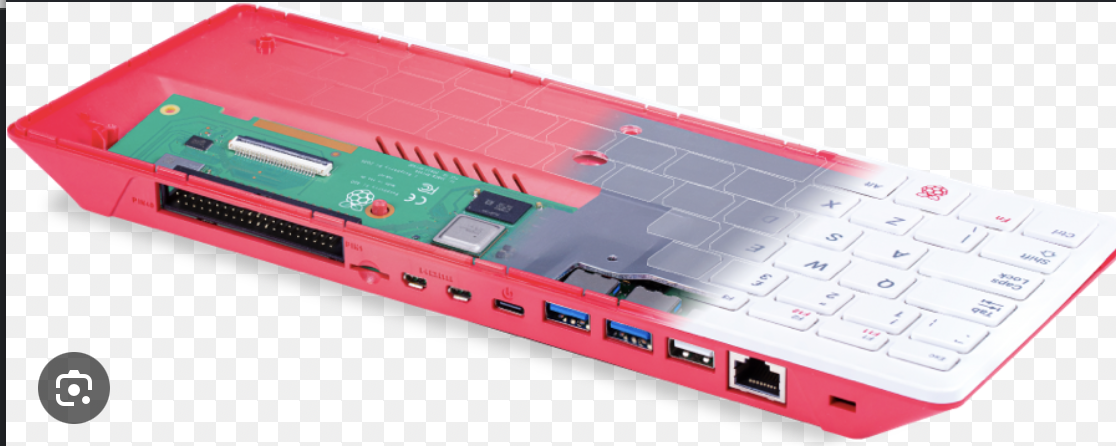
Keyboard and computer in one box
- attach mouse (white port)
- attach monitor (HDMI port)
- attach power (usb-c port)
- attach your ethernet cable (ethernet port)
Unmigrated media:Download BEGINNERSGUIDE-4THED-ENG_V2.pdf (application/pdf, 34.3 MB)
Look up the parts about pi400, chapter 3
First steps:
- turn the unit on with the power switch on the cord
- you should see a desktop show up, (make sure the monitor is on)
- you will notice that experienced users do two things first:
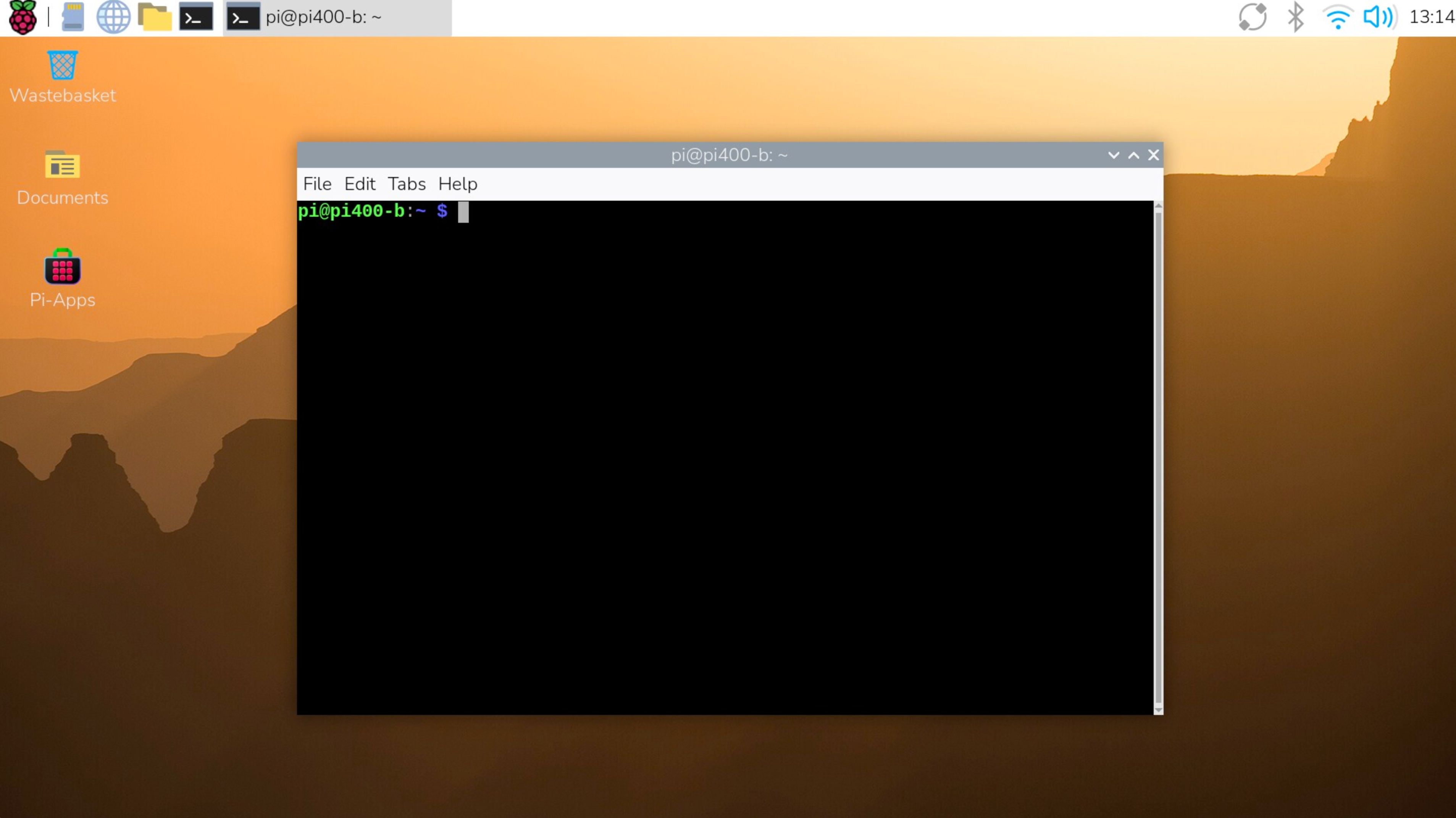
- open terminal (black icon in the menu bar)
- ping 4.4.4.4
- what is going on here?
Terminal is where most of our work on linux will take place
Ping is a universal command sending a "ping" or packet to a server
This is useful in several ways:
- it shows that the terminal, keyboard and everything is working
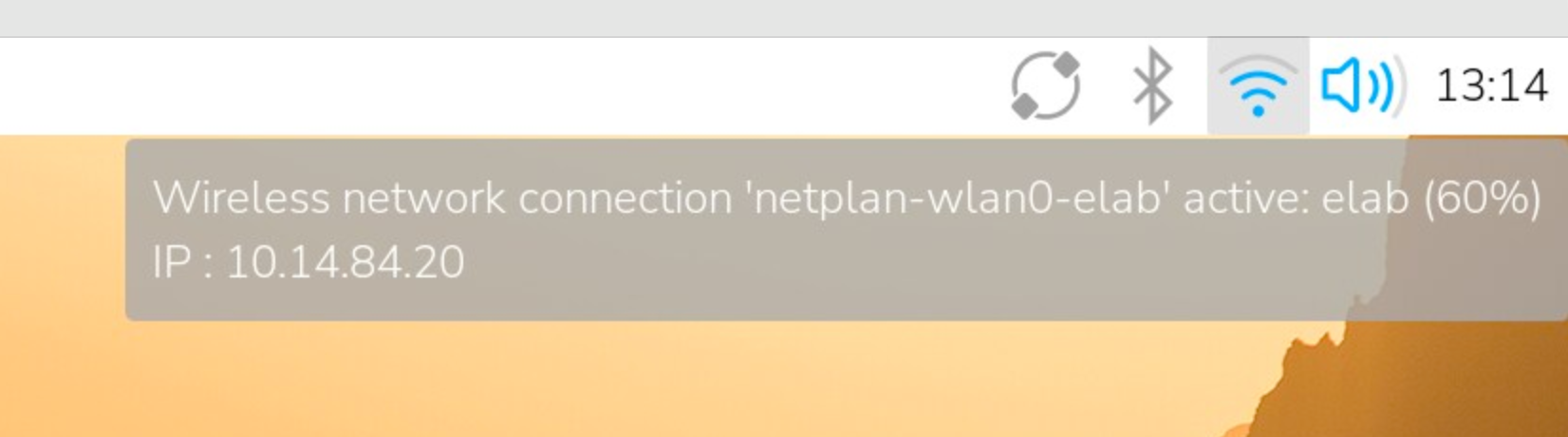
- it shows that your pi400 is connected to the internet
- it shows that you can reach a DNS (name to number) server on the internet
Pi400 specifics:
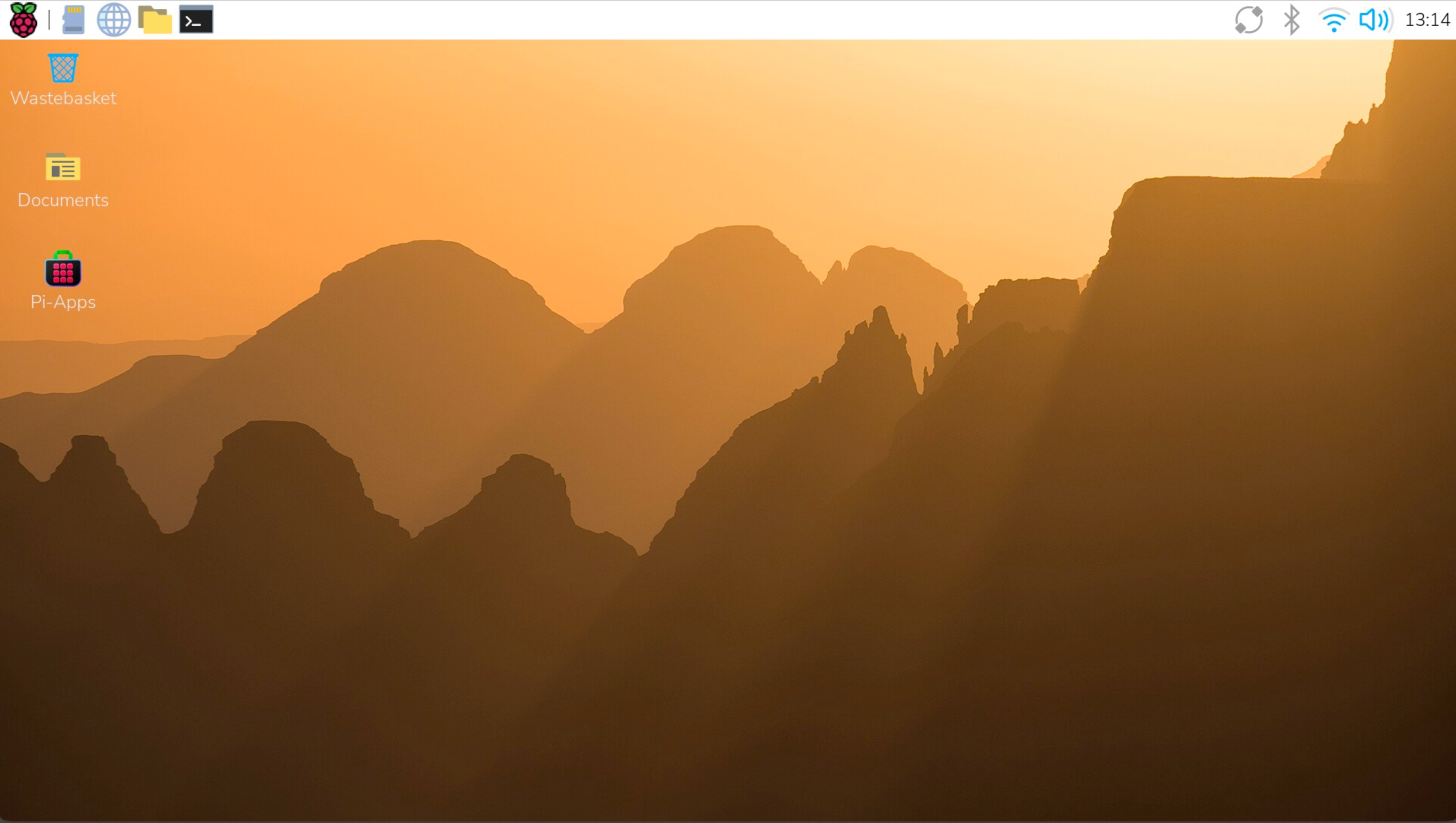
This is your home screen:
system controls:
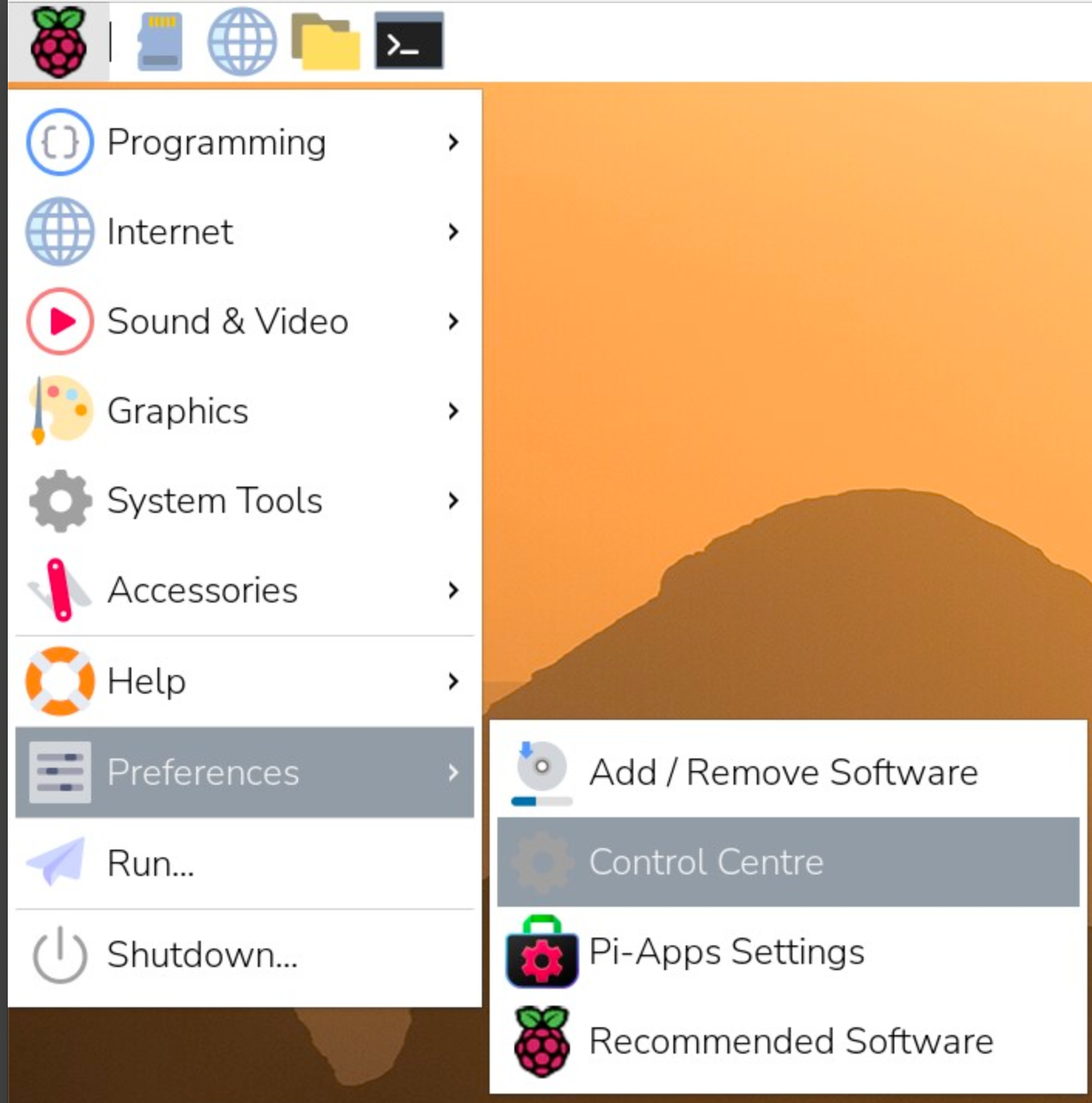
set browser choice:

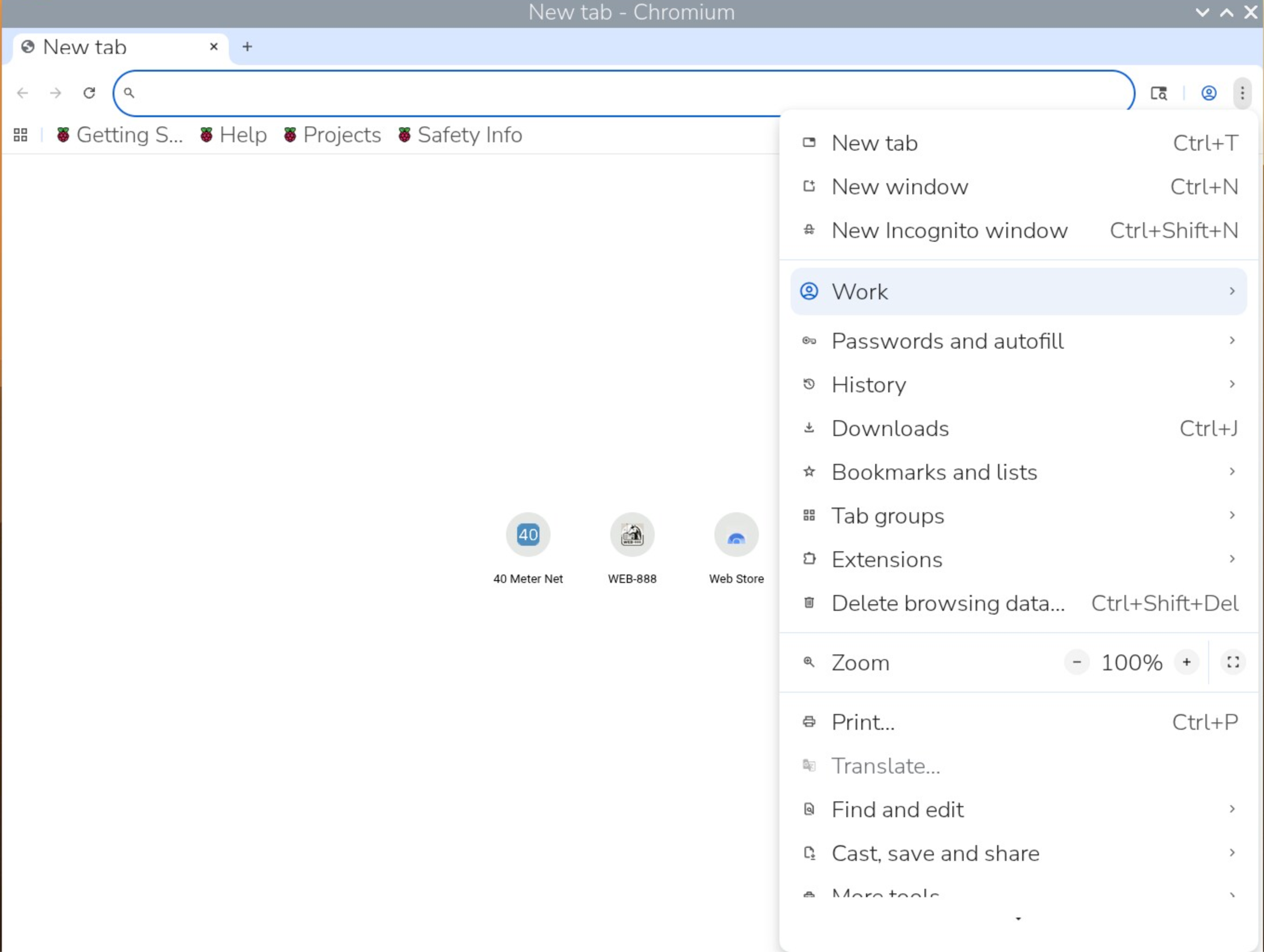
Chromium settings:
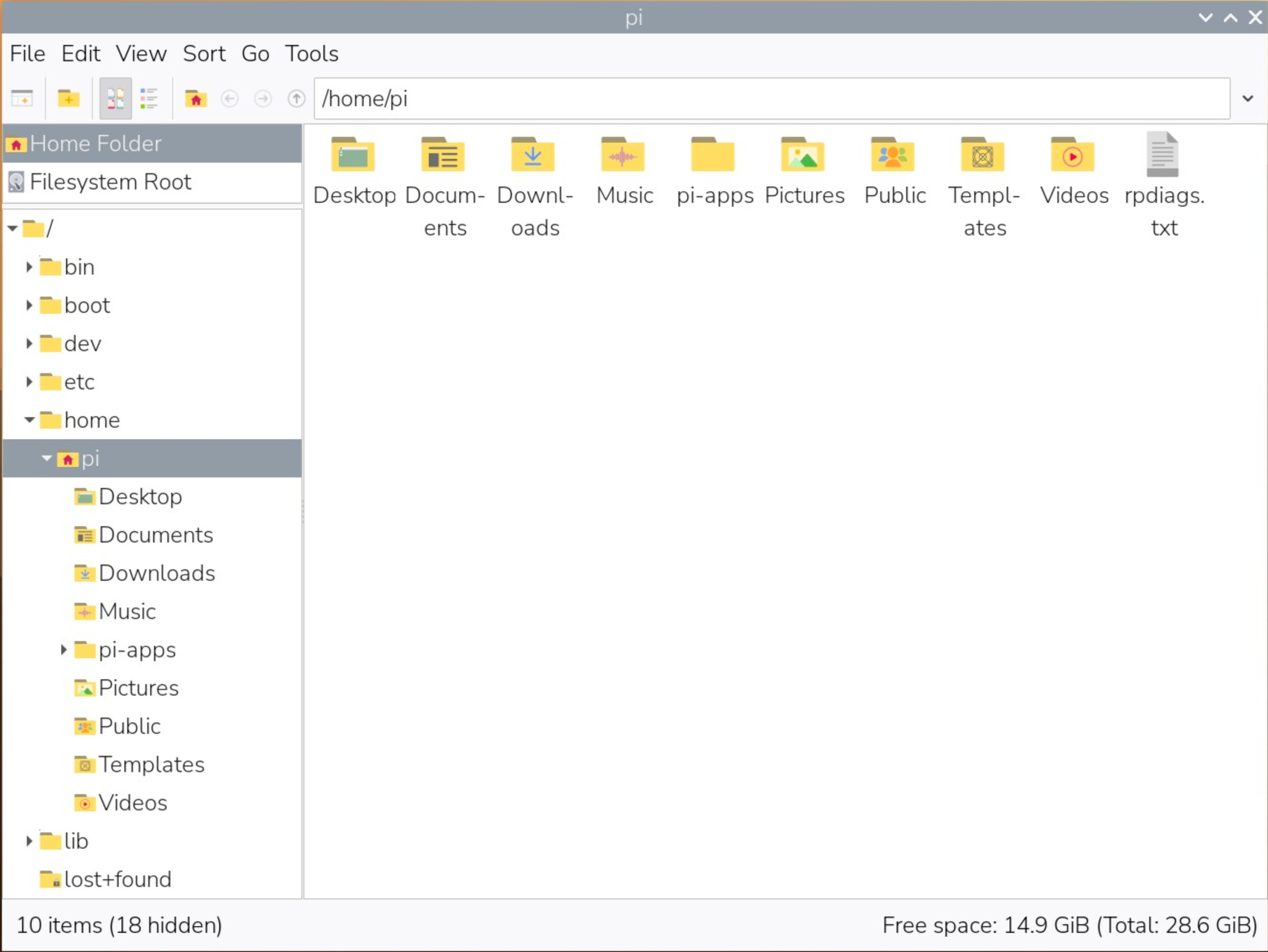
File browser: home directory
Unix->linux->debian->raspian (debian on a raspberry pi)
In 2026, we will be using a version of linux called debian, named after the programmer's wife (Deb) and written by the programmer (Ian).
Debian is just one of the flavors of linux you could use, and since ours is running on a raspberry pi, the version is called "raspian"
Our 2026 version of raspian is called version 12 or Trixie.
See if you can find why these are named this way: https://en.wikipedia.org/wiki/Raspberry_Pi_OS
You might also hear about another popular linux "distro" called Ubuntu, which is popular as a desktop computer alternative.
About linux:
- The short story is that most computers on the internet use linux, which was developed from an older program called UNIX, developed at the University of California Berkeley (Go Bears) in 1980.
- Linus Torvalds wanted a smaller, free version of this program and developed Linux, or "Linus version of Unix"
- Unix later became OSX which is what runs on your mac.
Who cares?
You may find that the terminal on your mac runs many of the same commands as your Pi400.
For your mac to run ALL linux commands, we install a program called Homebrew, which you can find here:
So what can you do with linux?
- We will learn how to setup networks, web servers, web pages, and anything you can imagine happens with computers on the internet.
- Oh, and we'll be using your Pi400 as a "victim" you will attack from your mac laptops when we learn cybersecurity.
- Huh?
- We don't want to use your personal computer for anything that might compromise your personal data or ability to use your computer for your work.
- Attacking a Pi is fun, and if something goes wrong, we just replace the hard drive...
What hard drive?
The SD card on the back of your pi is the drive your computer uses. Take it out and your Pi400 becomes useless.
Possible Pi projects: short list
- web server
- media server
- programming python, java, and others
- robotics
- AI server, AI bot
- home automation
- cybersecurity host or attacker
So, why is it called a "pi"?
The terminal
- Just like an airline terminal, it is the end of a trip, or a place where you can change flights, arrive or depart.
- The terminal in our case is named after computer terminals that were at the end of a long line to a mainframe server, often in another location.
- You may see the abbreviation "tty" around some terminals, this means "teletype" or a typewriter attached to a computer.
- Dr. Bill first learned on one of these, which punched little holes in green paper tape.
- Every 8 holes (a "bit") was a character (a "byte")-good for you to remember this...
Have you seen the terminal?
Sure!
Any hacking movie has terminal screenshots, most of them fake, except for a few (look these up) Mr. Robot is one...
Root
Ok, who is this person "root"?
- Imagine the computer as a tree upside down-the branches are the file systems, and "root" is the superuser that has access to all files.
- We will sometimes use root, but more often we will use "superuser" or "su" in this format:
- sudo apt update -y
- Treat me like the superuser ("superuser-do"), open the free place to update files on the web (apt), and update my computer (update).
- Any command followed by a space then a - character is a "flag"
- In this case -y means "say yes to anything you ask me"
Looking around at the pi desktop:
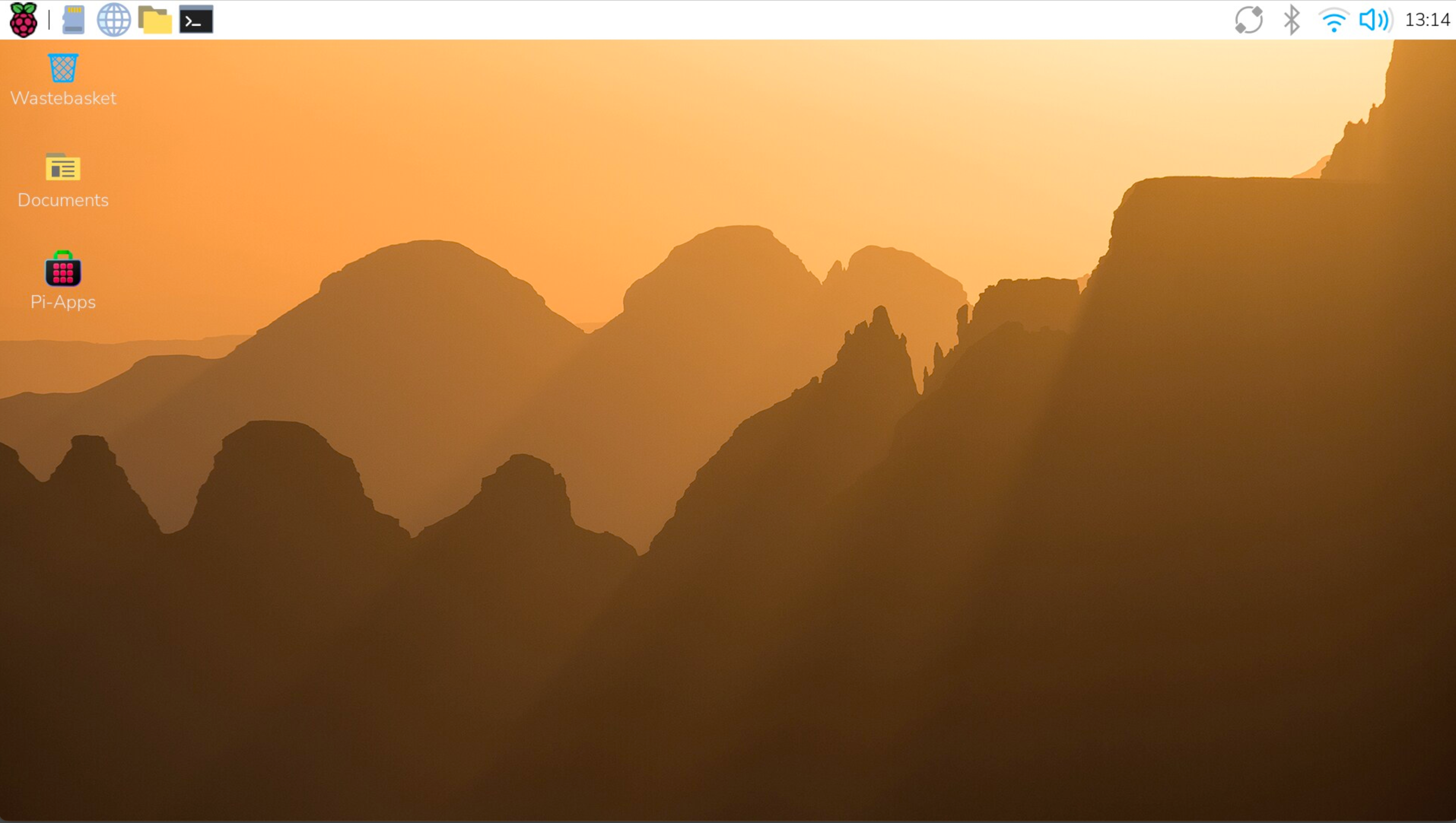
find these:
- apps drawer: upper left corner fruit icon
- menu bar: top
- network settings: hover over the wifi icon
- updates (may show as a pair of arrows)
- bluetooth
- pi connect (you can access your pi over the internet)
- terminal app (black box)
- file browser (yellow folder)
- internet browser (globe icon)
- globe=internet browser (choose below using raspi-config)
customize your pi: in your terminal app, type this:
sudo raspi-config
- setting up with raspi-config
- pick your browser
- give your pi a name on the network (this may not work with latest versions)
- enable ssh (for later)
- enable VNC (for remote access)
who is sudo?
"superuser do"
- use terminal to reboot: sudo shutdown -r now
- examine that command: shutdown, restart flag, when?
Migrated from Apple Server Wiki. Original page ID: U3V4y5b4