On your mac, find the wifi icon on the upper right:
Screenshot 2026-04-29 at 7.43.13 AM.png
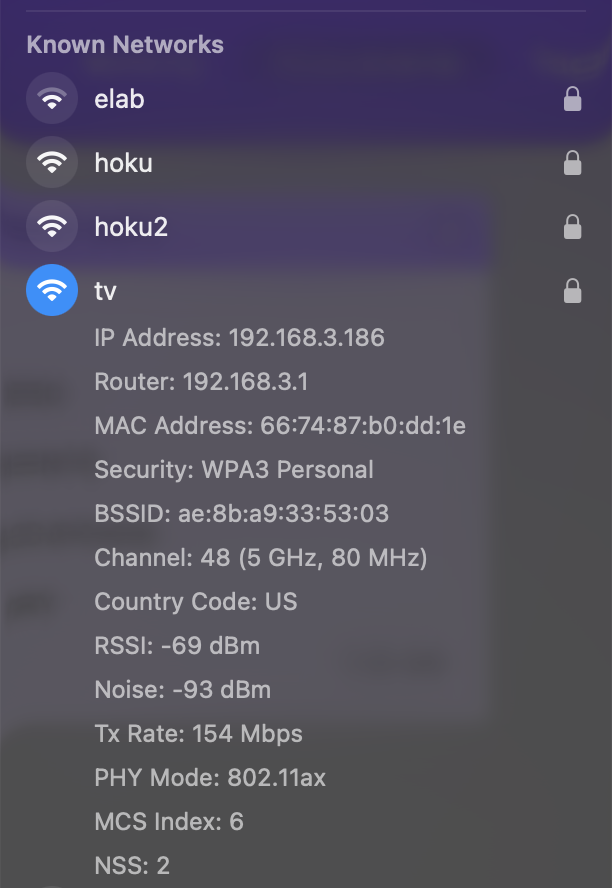
Hold option and click on the icon, you should see this:
Screenshot 2026-04-29 at 7.21.17 AM.png
Let's decode this a bit:
IP address: your address on the wireless network (this may also show up as a client on your router project)
Router: usually the IP address of your home router (the one you were creating in the last lab)
MAC address: the MAC hardware address of your computer, again something you saw in the router lab
Security: encoding scheme, WPA3 is the latest one, WPA means wireless protected access
BSSID: the base station ID MAC address, important to know if you are being attacked, or to see if you are connected to the closest access point (AP)
Channel: there are two or three frequency bands: 2.4 gHz, 5.8 gHz and lately 6 gHz, each with "channels"
Country code: each country has specific channels that are allowed, e.g. in the US, 2.4 gHz has 1-11, but in Japan they have 1-13, so some students use Japanese APs with Japanese computers to get around HPA wifi
RSSI: Received Signal Strength Indicator, or how strong your computer "hears" the access point, note it is a negative number, so -69 is better than -89 dBm (decibels above a milliwatt)
Noise: this is how noisy your wifi environment is. the lowest I've ever seen is -110 dBm in the middle of the desert near Mauna Loa. subtract the noise from the signal to get the amount your computer can actually use. if you try to talk to someone in the shower, they can't hear you (high noise) but you can hear them (low noise). same reason you can whisper in the library (low noise, low signal)
TX rate: transmission rate, or how fast your computer can talk to the access point. if this is low, you are likely seeing it as slow emails, slow web, or impossible streaming. on newer macs, you may see this go slow when you are not using the internet, and then jump very high when you are browsing-try it.
PHY mode: the type of encoding your wifi hardware is using, all based on standards set by the IEEE, so 802.11 means wifi, 802.11a or b were the first, we are now at 802.11ax or even 802.11be, which can be faster than ethernet
MCS: modulation and coding scheme: a combination of factors between 1-31, with 31 being best connection
NSS: number of spatial streams: essentially the number of antennas active on your device, usually 1-3, with more antennas meaning faster connections. my computer above has two antennas working, try your newer macs, they may have 3 or more.
Questions #1:
why are these usually hidden from "normal casual" users?
what superpower does this information give you as a user?
how can you use this information to diagnose wifi issues for your friends?
if you were running your router at home, how could you tell if users were having issues?
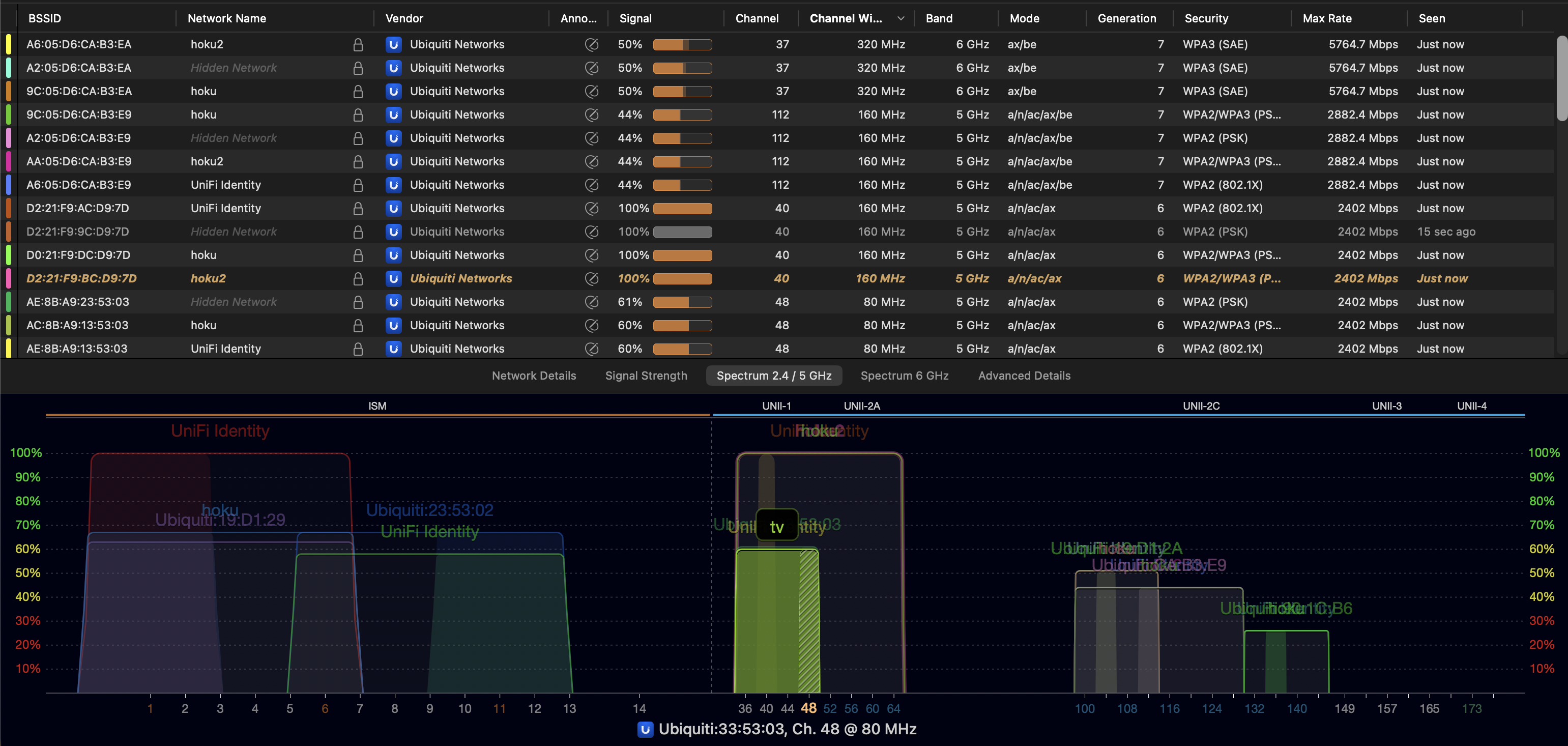
Next try wifi explorer: (installed on the elab macs, you can download free versions)
look first at the lower image: notice the overlapping networks and the channels-this is bad
look at the table: note the BSSID for each client, and which network they are attached to
note the networks with no name: "hidden network". how could you set this up on your home router?
the cute little lock icon means secured network. where would you see a wifi network without this?
the vendor at this location is ubiquiti, yours might be TPLINK or Synology
signal is how strong each client sees THEIR access point, useful if you are helping a friend with wifi issues
channels are same as the lower image, you can click on the top header to organize these by number
channel width is like the lanes on a highway: more lanes means more traffic, but is also means if you are in a tiny car (one lane, small bandwidth) a big truck taking up several lanes will wipe you out. these vary from 20 gHz wide to 160 gHz wide and even 320 or 640 on some new wifi7 devices which only the latest laptops can use.
band is 2.4, 5.8 or 6 for now
generation is the version of 802.11 the client is using, you might hear about wifi6 or wifi7, most of your laptops are using wifi4 or 5, but "stupid" devices like cameras might still use wifi 2 or 3, slowing down the entire network, one reason we segment them to a "slow" network
security, as above is the level of security used, which you might see as usually WPA3, but cameras might still be using WPA (no number, just WPA one) which can be cracked on your laptop in about 2 minutes
max rate: look at the fastest rate for this computer: 5764 mb/s, which is 5x the speed of your ethernet cable. this does not mean wifi is always faster than wired networks. wired networks can transmit (talk) and receive (listen) at the same time, while wifi networks can only do one or the other (for now). also, wired networks are inherently more secure, as they are physically separated from hackers.
Try joining a wireless network then use some of the scanning tools we have on the elab macs:
IP net monitor
network radar
iNet scanner
IP scanner
network kit
Some technical details to review: Wifi uses one of three radio bands:
2.4 gHz: long range, lower data rates, stopped by water, wet leaves, humans
5.8 gHz: shorter range, higher data rates, goes through water better
6 gHz: very short range, humongous data rates, no issues with water
Signal and noise:
As mentioned above, try talking with someone who is in the shower: you can hear them, they can't hear you-why?
Same signal (speech) but your noise level is lower (high signal to noise ratio or SNR).
Shower person has high noise (shower), same signal (speech), low signal to noise ratio.
This is crucial....
MIMO:
Multiple in, multiple out and other ways access points "steer" radio beams
You may have noticed several antennas on your routers, these are used for aiming the wifi beam at users
If many people are on the same access point, the AP has to keep steering beams to everyone, overloading it.
If some users are at the limit of range (fringe users) this slows the entire network slows down: "can you hear me now?"
Improving your wifi network:
look at the spectrum diagram
notice any overlaps
change the channel on your AP so that it is not overlapping
re-check your signal levels
cybersecurity bits:
As a hacker, what do you have here that you don't have before?
After setting up your own wifi, what do you see here that you can do to improve the security of yours?
How could you use this tool and the OUI lookup tool online to get into a network?
Is there a site that lists all of the default passwords for access points?
Find it and lookup a few from your scans...
Questions #2:
How will this enable you to improve the wifi at home?
What did you learn doing this that can improve your user experience?
How many "illegal" wireless networks did you find on campus?
Please email screenshots of what you find
Next: netspot wifi mapping
Top Homebrew WiFi Utilities
airport (CLI): A powerful command-line tool to scan, manage, and display WiFi network information on macOS.
Install: brew tap xwmx/taps && brew install airport
WiFiman Desktop (GUI): A comprehensive tool for monitoring and troubleshooting network performance.
Install: brew install --cask wifiman
Neo Network Utility (GUI): A tool providing detailed network information and diagnostics.
Install: brew install --cask neo-network-utility
tiny-wifi-analyzer (GUI): A community-driven tool for real-time Wi-Fi network visualization.
Install: brew install --cask tiny-wifi-analyzer
wifi-password (CLI): A simple tool to display the password of your current WiFi network.
Install: brew install wifi-password
Bettercap (CLI/Web UI): A framework for testing wireless networks and network security.
Install: brew install bettercap
Wifite2 (CLI): A tool to automate auditing encrypted wireless networks.
Install: brew install wifite
Install: brew install wifitui
Network Diagnostic Tools (Brew Formulae)
Wireshark (GUI): Captures and analyzes network packets in real-time.
Install: brew install --cask wireshark
nmap (CLI): Network discovery and security auditing.
Install: brew install nmap
tcpdump (CLI): Command-line packet analyzer for network troubleshooting.