
Module 4.1: Wireless scanning
Let's start with your wifi connection.
you already know how to hold option and the apple signal to get data, try the iwifisignal app installed on the elab macs:
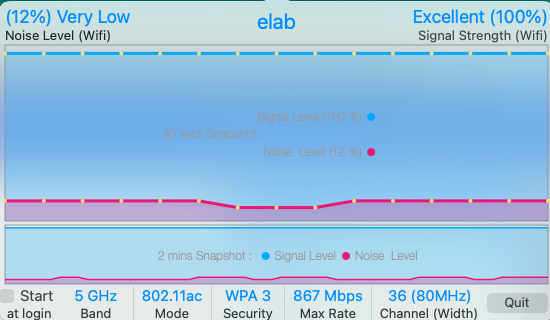
What do you see here that you don't see elsewhere?
What are the different levels of security? WEP, WPA, WPA2, WPA3?
What are the physical bands?
Try scanning with your own (newer) laptop, or look under "about this Mac" to see what other bands your laptop is capable of using.
Next try wifi explorer:
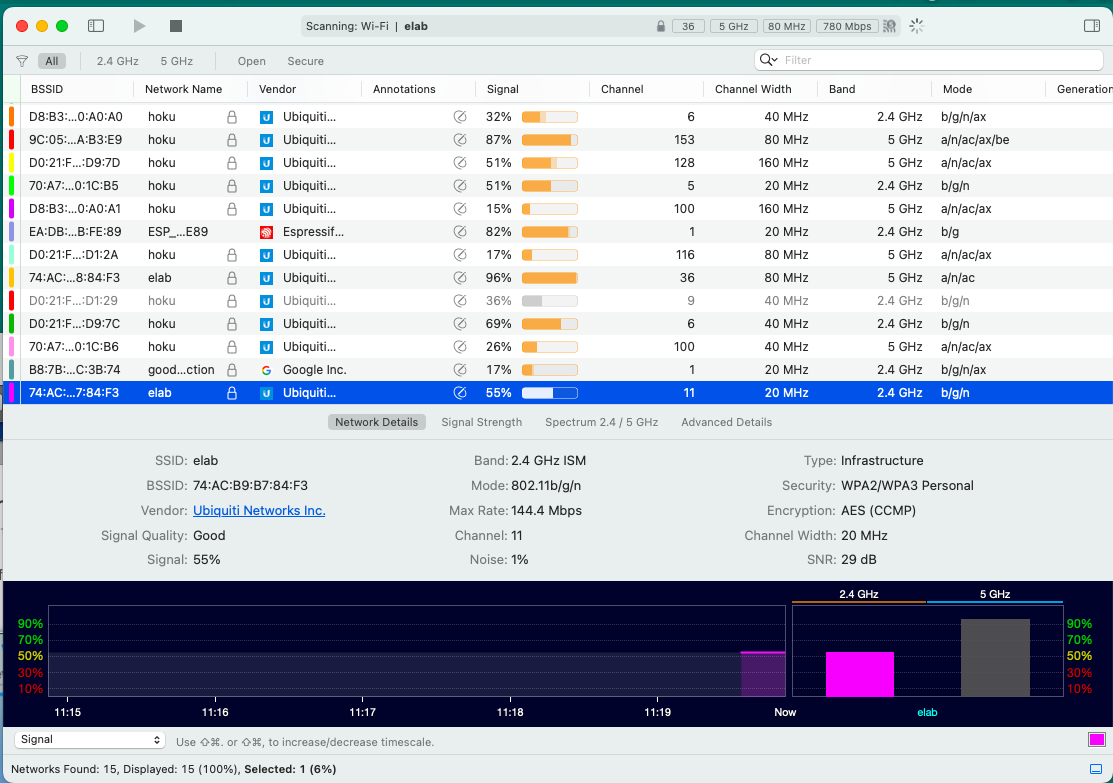
As a hacker, what do you have here that you don't have before? After setting up your own wifi, what do you see here that you can do to improve the security of yours?
How could you use this tool and the OUI lookup tool online to get into a network?
Is there a site that lists all of the default passwords for access points? Find it and lookup a few from your scans...
Try joining a wireless network then use some of the scanning tools you already know:
- IP net monitor
- network radar
- iNet scanner
- IP scanner
- network kit
Some technical details:
Wifi uses one of three radio bands:
- 2.4 gHz: long range, lower data rates, stopped by water, wet leaves, humans
- 5.8 gHz: shorter range, higher data rates, goes through water better
- 6 gHz: very short range, humongous data rates, no issues with water
Signal and noise:
Try talking with someone who is in the shower: you can hear them, they can't hear you-why?
Same signal (speech) but your noise level is lower (high signal to noise ratio).
Shower person has high noise, same signal, low signal to noise ratio.
This is crucial....
MIMO: multiple in, multiple out and other ways access points "steer" radio beams
If many people are on the same access point, the AP has to keep steering beams to everyone, overloading it.
If some users are at the limit of range (fringe users) this slows the entire network slows down: "can you hear me now?"
Setting up wifi networks:
- look at the spectrum diagram
- notice any overlaps
- change the channel on your AP so that it is not overlapping
- re-check your signal levels
Questions:
- How will this enable you to improve the wifi at home?
- What did you learn doing this that can improve your user experience?
- How many "illegal" wireless networks did you find on campus?
- Please email screenshots of what you find
Catching up:
- Make sure you have completed the cyber challenge #1
- Make sure you have completed the router setup challenge
If you are ready for a deeper dive into setting up wifi networks, pick one of the mikrotik devices and see if you can configure it for a wifi network and NAT to your inside machine
Migrated from Apple Server Wiki. Original page ID: 31L2K5g